SVG to 3D
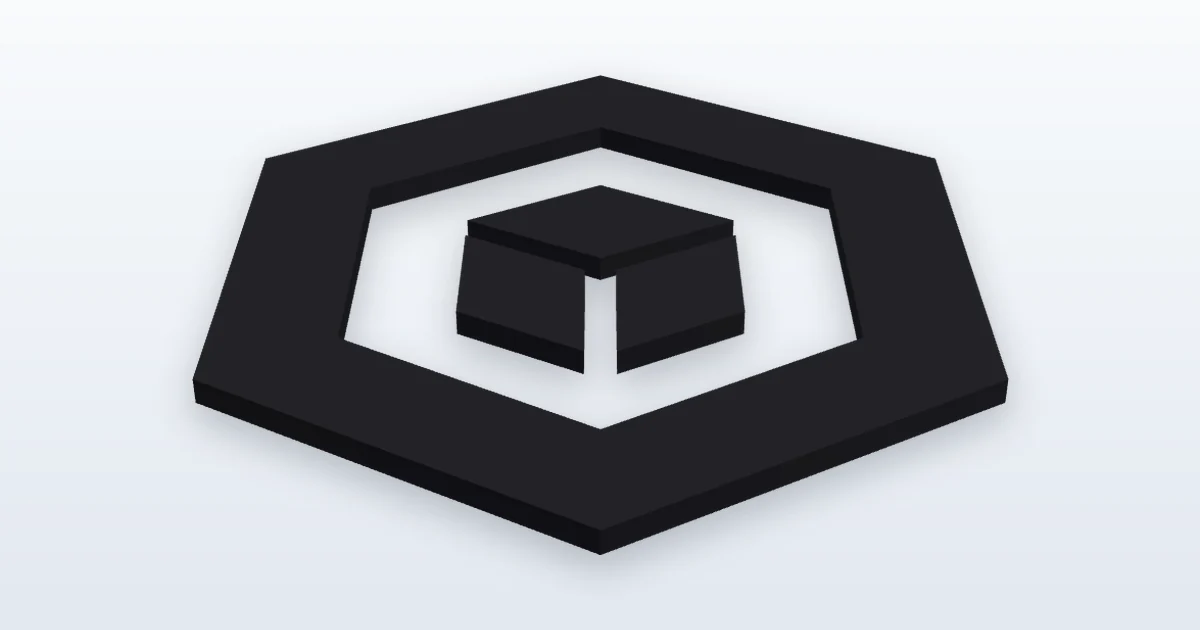
Load a simple SVG logo or icon, set its size and thickness and download a print-ready STL or 3MF. The file is processed in your browser and never uploaded.
Or drag and drop an SVG here. The file stays on your device.
Switching language reloads the page; choose your file again.
Current file: qr3d-sample.svg ·
Width and height stay in proportion: change one and the other follows.
Building the model…
Loading the SVG engine…
How to turn an SVG into a 3D model
An SVG describes a flat drawing with lines and curves. To print it, the drawing has to become a solid with a thickness. This page does that in four short steps, and the 3D preview updates as you change the settings.
- Choose your SVG. Pick a file with the SVG file field or drop it on the box. It can be up to 2 MiB (2,097,152 bytes). If you just want to see how it works, use the sample logo that is loaded when the page opens.
- Set the size. Type a width or a height in millimetres. The other value follows so that the drawing keeps its proportions. The first size is 100 mm on the longer side.
- Set the thickness and, if you like, a base. The thickness is how far the logo stands out. Tick Add a base plate to put the logo on a rounded plate, and adjust the base thickness and the margin around the logo.
- Download. Download STL for any slicer, or 3MF to keep the colours you chose. Open the file in your slicer and print.
Under the buttons, one line tells you the number of triangles, the real size in millimetres and whether the mesh is closed. Check the size there before printing: it is the size of the file you are about to download. Any warnings about the file appear right below it. Width and Height size the logo only: when you add a base, the size in that line is the whole model, base included (for example 110 × 60 mm for a 100 × 50 mm logo with the default 5 mm margin).
Which SVG files work best
Simple, filled vector shapes give the best results: logos, icons, silhouettes, stamps and badges. The tool reads the shapes of the drawing, joins the ones that overlap into one solid and extrudes the result. For plain lettering you can also use the Text to 3D tool, which needs no file at all.
A few things are not converted, and the tool warns you when a file uses them:
- Text. Text elements are ignored. Convert the text to paths in your editor first, then export the file again.
- Gradients and patterns. The shapes that use them are printed solid.
- Masks and clipping paths. They are ignored, so a masked or clipped shape is printed whole.
- Filters. Effects such as blur or drop shadow are ignored.
- Embedded pictures. Only vector shapes are converted, not photos or bitmaps inside the SVG.
- Markers and animations. Line markers such as arrowheads are ignored, and animations are removed so the shapes are printed in their still state.
Colours in the SVG are ignored. A 3D print is built from solid shapes, so the whole design is printed in one colour, the logo colour you pick on this page. If you add a base plate, the base can have a second colour. A colourful drawing therefore becomes a single-colour relief, and light and dark areas that were only different colours will merge into one surface.
Size, printer bed and thickness
The width and the height can each go from 5 to 400 mm and always stay in proportion. If you change the width, the height is calculated from the drawing, and the other way round.
The printer bed field tells the tool how large your build plate is. The default is 220 mm, a common size, and you can set any value from 100 to 400 mm. If the model, base margin included, is larger than the bed, the tool reduces it to fit and says so. If you later enter a larger bed, the size you asked for is restored.
If you type a number outside a field's range, the page uses the nearest allowed value; if you leave a field empty or type something that is not a number, it uses that field's default value. Either way it writes the value used into the field and says so in a short note under the settings.
The thickness is how far the logo stands out, from 0.4 to 20 mm. The default is 3 mm, and 2 to 4 mm is a typical range for a logo that should be solid but print quickly. Thicker models are stronger and take longer to print.
With a typical 0.4 mm nozzle, printers lay plastic in lines about 0.4 mm wide, so parts thinner than about 0.8 mm may print weakly or not at all. If the tool finds parts thinner than 0.8 mm at your size, it shows a warning. It is an estimate, not a guarantee, but it is a good signal to make the model larger or the lines thicker. A drawing made only of very thin parts may not print at all: without a base plate, a slicer can even report that the first layer is empty, and a base gives it a solid first layer.
With Add a base plate the logo sits on a plate with rounded corners. The base is 2 mm thick by default and extends 5 mm beyond the logo on every side; you can change both. The logo is sunk 0.15 mm into the plate, so the two parts overlap slightly and a slicer can merge them into one solid instead of leaving a gap between them.
Outlines, holes and overlapping shapes
Many SVGs draw lines instead of filled shapes: an icon may be made of strokes with a given width and no fill. The checkbox Turn outlines (strokes) into solid lines is on by default, and each stroke becomes a solid band of its own width, following the corners and line ends set in the SVG. Untick it if you want only the filled shapes. If a file contains only outlines and the box is unticked, the tool tells you that nothing printable was found. Dashed lines are printed as continuous lines.
Holes follow the fill rule stored in the SVG, which is either even-odd or non-zero. This is why the counter of an A, an O or a B stays open, and why a ring or a keyhole in an icon keeps its hole.
Shapes that overlap or touch are joined into one solid, so you do not get internal walls or double thickness where two shapes cross. Very small specks, under 0.01 mm², are left out and counted in a message, and shapes hidden with a display or visibility attribute in the SVG are skipped and counted. Hiding done through a stylesheet class (for example display:none in a style block) is not followed, so those shapes may still be printed, and the tool warns you when a file does this. Shapes with opacity 0 are skipped with a warning, while partly transparent shapes are printed solid. Shapes that lie outside the visible area of the drawing (its viewBox) are included, and the tool mentions it, so check the preview if you did not expect them.
After building the model the tool checks the mesh and reports whether it is closed. A closed mesh is watertight, which slicers need for a reliable result. If it ever reports open edges, the downloads stay available but are flagged: look at the file in your slicer first, or simplify the drawing.
How to export a clean SVG from your editor
Most problems come from the file, not from the tool. These general steps work in vector editors such as Inkscape, Illustrator or Figma; the exact menu names differ from program to program.
- Convert every piece of text to paths, so letters become ordinary shapes.
- Remove what cannot be printed: gradients, masks, filters and embedded pictures. Replace them with plain filled shapes if they matter to the design.
- Delete the layers and objects you do not want in the print instead of hiding them: hiding done with a stylesheet class is not followed, so those shapes may still be printed.
- Decide about strokes. You can leave them and let the checkbox turn them into solid lines, or convert them to filled outlines in your editor if you want full control over the result.
- Export or save as a plain SVG (UTF-8 text, not a compressed .svgz file), and keep it under 2 MiB.
If a file is rejected as too large or too complex, simplify the paths, merge small shapes and remove decorative detail. The tool accepts up to 5,000 elements, 100,000 points and 3,000 separate shapes and holes. It also estimates the work a drawing needs before doing it, and refuses drawings that would take too long, such as thousands of hairline details or one very long outline that winds around many times. These limits keep processing within a few seconds on a typical computer; on slower devices complex files can take longer. While the model is being built the page says so, and for a complex file it adds that it may take several seconds.
Your file stays private
Your SVG file is read and converted inside your browser and is not uploaded or sent anywhere. The drawing is never inserted into the page as an image or markup, only the 3D result is shown.
Before conversion the tool cleans the file as a precaution. Scripts, event handlers, embedded web content and links to other files are removed and never run, and the tool tells you when it removed something. Files with unsupported entity declarations or content that cannot be made safe are rejected with a message instead of being loaded.
The limits are 2 MiB (2,097,152 bytes) for the file, 5,000 elements, 100,000 points and 3,000 separate shapes and holes, plus an estimate of the processing work. They keep processing within a few seconds on a typical computer; on slower devices complex files can take longer.
Printing tips: STL, 3MF and colours
Which download? The 3MF file keeps the logo and the base as two coloured objects with the colours you chose. The button says 3MF (1 colour) when there is no base and 3MF (2 colours) when there is one. The STL format has no colour. Without a base you get one file named after your SVG, such as logo.stl. The name is cleaned: lowercase, spaces and symbols turned into hyphens, at most 40 characters, so My Logo.svg gives my-logo.stl. With a base you get a zip named after your SVG, such as logo-stl.zip, that contains base.stl and logo.stl. Import both files together so their positions stay aligned.
One colour or two? A printer with a single nozzle can still make a two-colour part: pause the print at the height where the base ends, swap the filament and continue. Look for the pause or colour change option in your slicer. For one colour, print everything in the same filament. STL and 3MF are standard formats that slicers such as Bambu Studio, PrusaSlicer, Cura and OrcaSlicer can open. The way each program treats colours in a 3MF varies, so check the result after importing.
Orientation. Print the part flat, with the base or the back of the logo on the bed. The back is flat and the sides are straight, so supports are not normally needed. A well-stuck first layer matters most.
Looking for a scannable code on a printed piece? Open the QR code generator, or read what the 3MF and STL files contain.
Open-source components
This tool builds on two open-source libraries. Three.js, including its SVG loader, is published under the MIT licence. Clipper, by Angus Johnson, is used to join shapes and create outlines; it is published under the Boost Software License 1.0. The licence texts are here:
Thanks to the authors who share their work under open licences.
Is this tool free, and is my SVG uploaded?
It is free to use. Your SVG is read and converted inside your browser and is not sent to a server.
Why is the text in my logo missing?
Text elements are ignored. Convert the text to paths in your vector editor, export the SVG again and load the new file.
Are the colours of my SVG kept?
No. The colours in the file are ignored and the design is printed in one colour, which you choose with the logo colour field. If you add a base plate, the base can have a second colour.
Should I download STL or 3MF?
Choose 3MF to keep the logo and the base as two coloured objects. Choose STL for any other case. With a base plate, the STL download is a zip with base.stl and logo.stl; without one it is a single STL named after your file.
What does the warning about parts thinner than 0.8 mm mean?
With a typical 0.4 mm nozzle, printers lay plastic in lines about 0.4 mm wide, so parts thinner than about 0.8 mm can print weakly. The warning is an estimate for your size. Make the model larger or the lines thicker to clear it.
My SVG is rejected as too big or too complex. What can I do?
The file can be up to 2 MiB (2,097,152 bytes) with up to 5,000 elements, 100,000 points and 3,000 separate shapes and holes, and drawings that would take too long to process, such as thousands of hairline details, are refused. These limits keep processing within a few seconds on a typical computer; on slower devices complex files can take longer. Simplify the paths, merge small shapes, remove decorative detail and export a plain SVG again.
Can I print a logo that I do not own?
You need the right to use the artwork you load. The tool only converts the file you give it and does not change who owns the design. This is general information, not legal advice.