Lithophane maker
Load a photo, choose the size and the thickness and download a lithophane as an STL or 3MF file. Your photo is processed in your browser and never uploaded.
Or drag and drop a photo here. The photo stays on your device.
Switching language reloads the page; choose your photo again.
Current picture: qr3d-sample.png ·
Light areas of the photo become thin and dark areas thick. The frame is as thick as the maximum. A frame is either none (0) or at least 0.5 mm. The maximum is kept at least 0.2 mm above the minimum.
Picture adjustments
Building the lithophane…
Preparing the lithophane…
How to make a lithophane from a photo
A lithophane is a thin relief print that shows a picture when light shines through it: the parts of the print that let more light pass look bright, and the thicker parts look dark. This page turns a photo into a flat lithophane that you can print on a 3D printer. You pick the photo, set the size and the thickness, look at the preview and download a file. The model is rebuilt a moment after every change, so you can try settings and watch the result.
- Choose your photo. Pick a file with the Photo field or drop it on the box. The page opens with a sample picture so you can see how it works, and the "Use the sample picture" button loads it again.
- Set the size and the frame. Type the Longest side in millimetres. It is the outer size of the whole model, frame included, and the other side follows the proportions of your photo. Then set the Frame width, or 0 for no frame.
- Set the thickness and the detail. The Minimum thickness is the wall under the lightest parts of the photo and the Maximum thickness is the wall under the darkest parts. The Detail field sets how many points per millimetre the photo is sampled at. Open Picture adjustments if you want to change brightness, contrast or gamma, or to invert the picture.
- Download. Click Download STL for any slicer, or Download 3MF. Open the file in your slicer and print it.
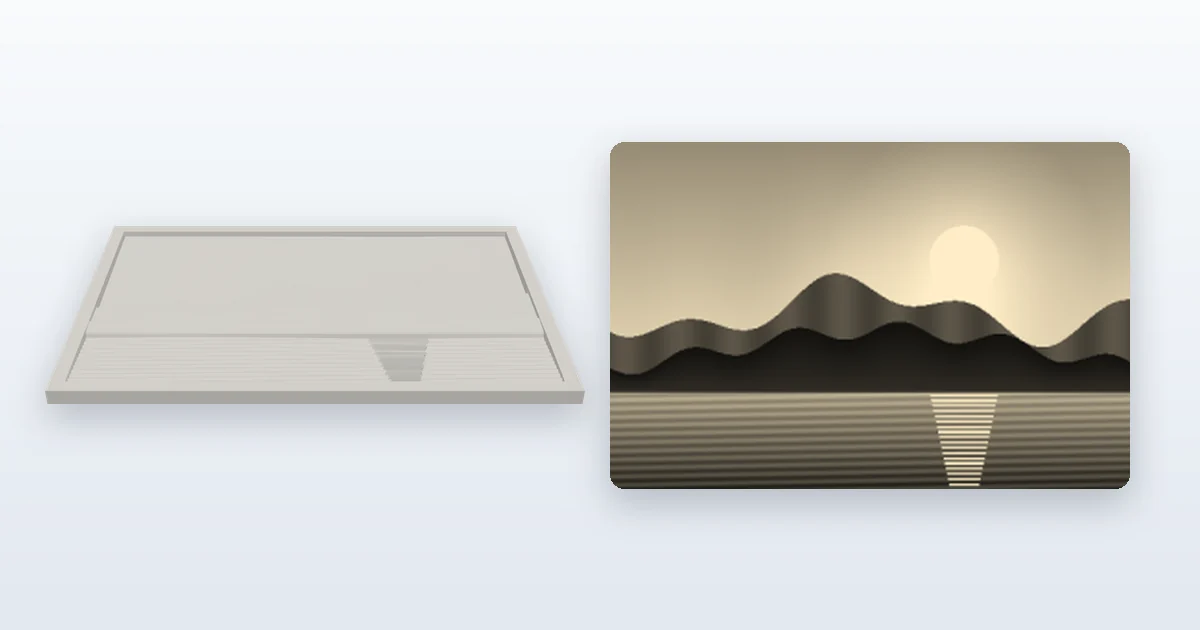
Under the buttons, one line gives the number of triangles, the real size in millimetres (width, height and the tallest point), the detail in points per millimetre and whether the mesh is closed. Check the size there before you print. Next to the 3D preview, a smaller picture shows roughly how the lithophane looks with a light behind it, brighter where the wall is thinner. It is an approximation drawn from the thickness values, not a photograph of a printed lithophane.
Choosing a good photo
Photos with clear contrast, a subject that fills the frame and a simple background work best, such as portraits, pets and landscapes with a clear subject. A lithophane has only a few millimetres of thickness to show every tone, so very busy or very flat pictures lose detail. If a photo looks grey and washed out, raise its contrast in the Picture adjustments before you print.
The tool accepts JPEG, PNG or WebP files of up to 25 MiB (26,214,400 bytes). A photo can have at most 50 megapixels and at most 16,384 pixels on one side, and a photo more than 8 times longer than it is wide is refused; crop it in your photo app first, because this tool has no crop control. These checks run on the size and the header of the file before the photo is decoded, and the message that appears names the limit. SVG files are drawings, not photos, and are not accepted here: to turn an SVG logo into a 3D model, use the SVG to 3D tool instead.
Large photos are reduced to 2,048 pixels on the longest side before the thickness values are computed. That does not reduce the detail of the model, because the model is built from fewer points than that. The orientation stored in photos from phones and cameras is respected, so a portrait photo stays a portrait. Transparent areas are read as white before your settings (brightness, contrast, gamma, invert) are applied; with Invert on they print as the thickest areas, and the page warns you when a picture has them.
Thickness and light
The mapping is inverted on purpose: light areas of the photo become thin and dark areas become thick. Light passes through thin plastic more easily, so when you put a lamp behind the print the light areas of the photo glow and the dark areas stay dim, and the picture appears as a positive image. Tick Invert if you prefer the opposite, so that dark areas become thin.
The Minimum thickness goes from 0.4 to 3 mm, and the default is 0.8 mm. The Maximum thickness goes from 1 to 10 mm, and the default is 3 mm. The maximum is always kept at least 0.2 mm above the minimum; if your values are closer than that, the page raises the maximum and says so in the report line. The page warns you when the minimum is under 0.6 mm, because walls that thin can break or leave gaps when printed. How much light passes through depends on your filament, your layer height and your lamp, so print a small test first and then adjust the minimum and the maximum.
The Picture adjustments change the tones before the thickness is computed. Brightness and Contrast are sliders from -50 to 50: brightness makes every tone lighter or darker, and contrast spreads the tones apart or squeezes them together around mid-grey. Gamma goes from 0.4 to 2.5, and 1 leaves the picture unchanged; above 1 the mid-tones become lighter, below 1 they become darker. If the whole picture ends up with a single tone, the lithophane would be a flat plate, and the page tells you so.
Size, frame and detail
The Longest side goes from 20 to 250 mm, and the default is 100 mm. The frame is included in that size, so a model of 100 mm with a 3 mm frame has a picture that is 94 mm long on its long side. The Frame width goes from 0 to 20 mm, and the default is 3 mm; 0 means no frame. The frame is as thick as the Maximum thickness, which makes it a stiff border. A frame is either none or at least 0.5 mm: under 0.25 mm it is left out, and from 0.25 to 0.5 mm it becomes 0.5 mm. If a wide frame would leave the picture too small, the page narrows it and says so.
The Detail field goes from 1 to 10 points per mm, and the default is 3 points per mm. More points give a finer picture and a bigger file. A model is limited to 250,000 triangles so that it stays easy to open in a slicer; above that, the page lowers the detail automatically and tells you the new value, for example when you ask for 10 points per mm on a 250 mm model. Building a model close to the limit can take a few seconds. The page shows a Building message while it works and may not respond to clicks until it is done.
If you type a value outside a field's range, the page uses the nearest allowed value, writes it into the field and says so in a short note under the settings.
The report line also says whether the mesh is closed, which means that the model passed the mesh check and has no open edges, so it is a solid. If the check ever fails, the page warns you; the downloads stay available but are marked, and you should look at the model in your slicer before you print.
Printing and viewing tips
The file contains a flat lithophane: a smooth flat back and the relief on the other side. Print it lying on its flat back with the relief up. Because the relief only rises from the flat back, no part of the model hangs in the air. White or natural filament is the usual choice, because the light has to pass through the plastic. A solid infill, set to 100 percent in your slicer, avoids an infill pattern showing through, and smaller layer heights let the thickness change in finer steps.
To look at it, put a lamp or a window behind the flat back and look at the relief side: the picture reads the right way round there. Seen from the flat back it is mirrored. Only flat lithophanes are available in this tool; curved and cylinder versions, such as a lithophane that wraps around a lamp, are not.
Download STL gives one file with coordinates in millimetres. Download 3MF gives one object called Lithophane, also in millimetres. Both contain the same shape, so use the one your slicer prefers. You can read what each format contains in the guides to 3MF and STL. For a 3D model from other kinds of artwork, try the SVG to 3D and Text to 3D tools. If you also want a scannable code on a printed piece, open the QR code generator.
Your photo stays on your device
Your photo is read and processed inside your browser and is not uploaded or sent anywhere. The photo itself is never placed in the page: only the 3D model and the preview drawn from the computed thickness values are shown. The size and the header of the file are checked before the photo is decoded, and the file name appears on the page as plain text only.
The files you download are named after your photo. The name is cleaned up: My Photo.jpg gives my-photo-lithophane.stl, and the 3MF gets the same name with the .3mf ending. If a photo has no usable letters or digits in its name, the file is called image-lithophane instead.
Open-source components
The 3D preview is drawn with Three.js, which is published under the MIT licence: Three.js licence. The 3MF file is packed with JSZip, which is dual-licensed MIT or GPLv3 (JSZip), with pako under MIT; the licence texts are in the JSZip and pako licence. The lithophane geometry, the image checks and the STL writer are QR3D Maker's own code.
Is this tool free, and is my photo uploaded?
It is free to use. Your photo is read and processed inside your browser and is not uploaded or sent anywhere.
Why are the light areas of the photo thin?
Light passes through thin plastic more easily than through thick plastic. With a lamp behind the print, the thin parts glow and the thick parts stay dim, so the lithophane shows your photo as a positive picture. The Invert option reverses this.
Which thickness should I choose?
The defaults are a good start: 0.8 mm for the lightest parts and 3 mm for the darkest. A thinner minimum lets more light through but can break or leave gaps, and the page warns you under 0.6 mm. A thicker maximum gives more contrast. Print a small test, because the result depends on your filament, layer height and lamp.
Should I download STL or 3MF?
Both contain the same shape, with coordinates in millimetres. STL works in any slicer. 3MF is one object called Lithophane and is also read by most slicers. If you are not sure, start with STL.
Can I make a curved or cylinder lithophane?
Not yet. This tool makes a flat lithophane only. Print it on its flat back and look at it with a light behind it.
Why did the page reduce the detail?
A model is limited to 250,000 triangles. When the size and the detail you asked for would need more, the page lowers the detail automatically and tells you the new value in points per millimetre. A smaller size or a lower detail value keeps it as you set it.
My photo is rejected as too big. What can I do?
The file can be up to 25 MiB (26,214,400 bytes), with at most 50 megapixels and 16,384 pixels on one side, and it cannot be more than 8 times longer than it is wide. Save a smaller copy of the photo in your photo app, crop it if it is very long, and load it again.
Can I use any photo?
You need the right to use the picture you load. The tool only converts the file you give it and does not change who owns the picture. This is general information, not legal advice.